
Captivating presentations can define success in business meetings, classrooms, and leadership forums. The right tools make a difference, and Apple's Keynote stands out for its ability to create visually impressive and persuasive presentations. This guide is designed to help you master every aspect of a keynote presentation, whether you are a beginner or aiming to refine advanced skills.
You will discover Keynote's core fundamentals, learn how to design compelling slides, explore powerful new features, and unlock collaboration tools. We will also cover expert tips for delivering your message and troubleshooting common issues. Ready to elevate your presentation game? Dive in and unlock the full potential of Keynote.
Understanding Keynote: Interface, Features, and Fundamentals
Keynote presentation software has redefined how professionals, educators, and creatives communicate ideas visually. Its journey began as Apple’s answer to the demand for elegant and effective presentation tools, quickly becoming the preferred platform for those seeking both simplicity and power.
Overview of Keynote’s Place in Modern Presentations
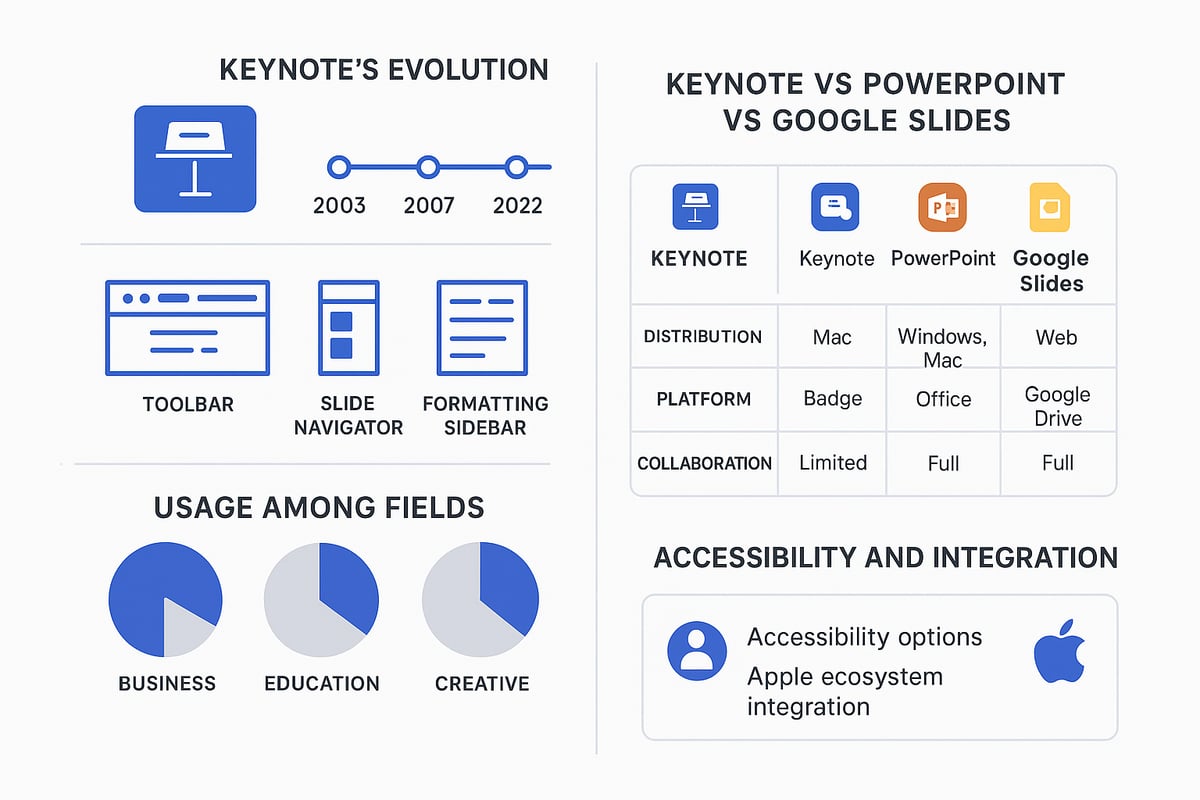
Since its debut, Keynote presentation tools have set new standards for clarity and visual impact. Originally designed for Apple executives, Keynote has evolved into a robust platform trusted by major conferences and high-stakes events worldwide. Unlike competitors such as PowerPoint and Google Slides, Keynote’s seamless integration with the Apple ecosystem offers unmatched reliability and design flexibility.
Professionals appreciate Keynote’s intuitive workflows, while educators use it to craft engaging lessons. According to recent industry reports, Keynote consistently ranks among the top three presentation platforms, reflecting its strong adoption across sectors. Its advanced features and polished output make it a staple at Apple product launches and creative industry showcases.
Comparing the main players:
| Feature | Keynote | PowerPoint | Google Slides |
|---|---|---|---|
| Apple Integration | Excellent | Limited | Limited |
| Design Flexibility | High | High | Moderate |
| Collaboration | Strong (iCloud) | Strong (Office 365) | Excellent |
| Cost | Free (Apple users) | Paid/Subscription | Free |
For a deeper look at its development and unique feature set, see the Keynote Presentation Software Overview.
Navigating the Keynote Interface
Mastering the Keynote presentation environment begins with understanding its interface. The main dashboard is divided into three core areas: the toolbar for quick actions, the slide navigator for organizing content, and the formatting sidebar for detailed adjustments. Customizing these components streamlines workflow, especially for users managing frequent or complex presentations.
Users can tailor their workspace by rearranging panels, adjusting theme colors, and saving preferred layouts. Slide layouts and master slides allow for consistent branding and fast editing, while an array of built-in themes provides a professional starting point for any keynote presentation.
Accessibility is paramount. Keynote supports multiple languages and offers accessibility options such as voiceover support, closed captions, and high-contrast modes. These features ensure global teams and diverse audiences can participate fully. For presenters, customizing the interface not only improves efficiency but also supports accessibility goals, making every keynote presentation more inclusive and effective.
Core Features and Functions
The power of a keynote presentation lies in its features. Adding, duplicating, and organizing slides is seamless, with drag-and-drop support for rapid content creation. Templates and themes help maintain visual consistency, while robust tools make it easy to incorporate images, videos, charts, and tables.
Animations and transitions elevate engagement, allowing presenters to reveal information step by step. With just a few clicks, a basic outline transforms into a dynamic visual story. For example, a quarterly growth report can be brought to life using animated charts and layered visuals, turning data into a compelling narrative.
Keynote presentation software empowers users to craft visually stunning, interactive, and accessible stories that stand out in any setting.
Designing Compelling Keynote Presentations: Structure, Visuals, and Storytelling
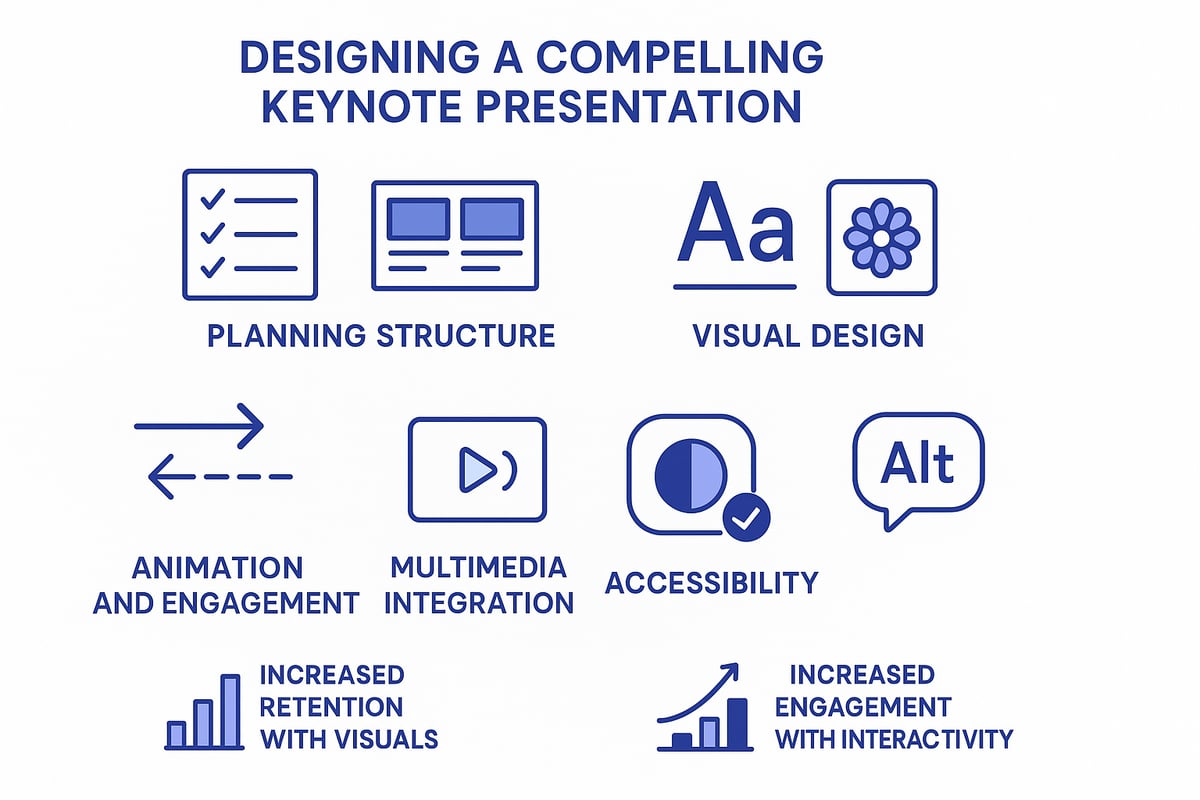
Crafting a standout keynote presentation begins with thoughtful planning and a keen eye for design. Every slide should serve a clear purpose, guiding your audience through a compelling story. In this section, you will learn how to structure your keynote presentation, apply effective visual design, boost engagement with animations, integrate multimedia, and ensure accessibility for all viewers.
Planning Your Presentation Structure
A successful keynote presentation starts with clear objectives and a deep understanding of your audience. Define what you want your audience to remember and tailor your message accordingly. Outline the flow: begin with a strong introduction, move through key points in the body, and finish with a memorable call to action.
Use the slide sorter and outline view to organize ideas logically. This approach helps maintain a smooth narrative throughout your keynote presentation. Storyboarding can be invaluable, especially for complex topics like product launches or training sessions.
For example, create a storyboard by listing slide titles and bullet points before designing visuals. This ensures your keynote presentation remains focused and impactful. Always keep your audience’s needs at the center of your planning process.
Visual Design Principles for Keynote
Selecting the right template or crafting a custom theme is essential for a polished keynote presentation. Consistency in color schemes, fonts, and branding establishes credibility. When choosing visual elements, balance is key: use white space to prevent clutter and highlight important content.
Best practices include using high-contrast colors for readability and legible fonts for all text. Incorporate high-quality images and icons to support your message. Studies show visuals can increase retention by up to 42%. For more inspiration and expert tips, explore Designing Impactful Keynote Presentations.
Summarize your design approach with a simple table:
| Element | Best Practice |
|---|---|
| Colors | High contrast, on-brand |
| Fonts | Simple, readable |
| Images | High-resolution, relevant |
| Layout | Balanced, uncluttered |
Enhancing Engagement with Animations and Transitions
Animations and transitions can make a keynote presentation dynamic and memorable. Use slide transitions to guide viewers smoothly between topics. Builds and object animations help reveal information step by step, keeping your audience focused.
However, restraint is vital. Overusing effects can distract rather than enhance. Choose subtle transitions for professionalism and apply animations only when they clarify or emphasize key points. For example, animate each stage of a process to walk your audience through complex steps visually.
To refine your keynote presentation, preview animations and adjust timing for optimal flow. This ensures every effect supports your message rather than overwhelming it.
Integrating Multimedia and Interactive Elements
Incorporating multimedia elevates your keynote presentation, making it more engaging and interactive. Embed videos or audio clips to illustrate concepts or provide real-world examples. Add live web content for up-to-date information or demonstrations.
Interactive features like clickable links, buttons, or slide navigation can turn your keynote presentation into a two-way experience. Keynote Live allows you to present remotely, connecting with audiences regardless of location.
Consider an interactive Q&A slide where participants submit questions in real time. This approach transforms a standard keynote presentation into an engaging, audience-centered event.
Accessibility and Inclusivity in Design
Accessibility is a cornerstone of every effective keynote presentation. Ensure high color contrast and choose fonts that are easy to read for all viewers. Add alt text to every image and media element, so screen readers can convey your content to visually impaired users.
Keynote’s accessibility checker can help you identify and resolve issues before presenting. Design with inclusivity in mind, considering neurodiverse and global audiences. For example, avoid color combinations that may be challenging for color-blind viewers, and use clear language for international teams.
A fully accessible keynote presentation not only broadens your audience but also demonstrates a commitment to professionalism and respect. Make inclusivity a non-negotiable part of your design process for every keynote presentation.
Step-by-Step Guide: Creating a Keynote Presentation from Start to Finish
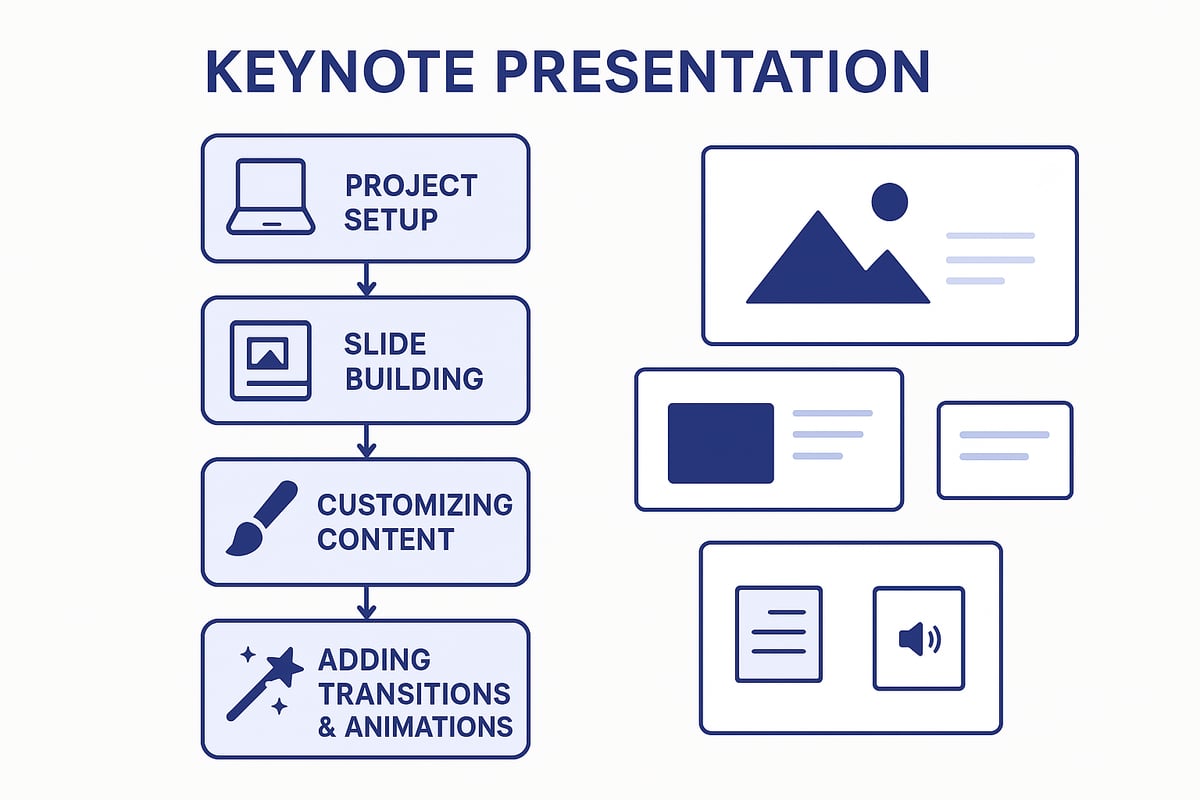
Embarking on a keynote presentation journey can seem daunting, but a clear, methodical approach makes it achievable for anyone. By following this step-by-step guide, you’ll transform ideas into a polished keynote presentation that engages and inspires your audience. Let’s break down the process for maximum clarity and confidence.
Setting Up Your Project
Getting started with a new keynote presentation begins with launching Keynote and selecting the ideal theme for your topic and audience. Themes provide a professional foundation and set the visual tone from the outset.
Adjust your presentation settings to match your needs. Choose the appropriate aspect ratio (16:9 for widescreen, 4:3 for traditional), set your preferred language, and pick the orientation that suits your content. Naming your keynote presentation file clearly and saving it in iCloud Drive ensures easy access and backup across your Apple devices.
Before you dive into content, consider creating folders for assets like images, logos, and charts. This organization will streamline your workflow and prevent last-minute scrambles. With your environment prepared, you’re ready to build a standout keynote presentation from the ground up.
Building Your Slides Chronologically
The next step in crafting a keynote presentation is to add slides and arrange them in logical order. Begin by inserting a title slide to introduce the topic, followed by slides for your main points. Use Keynote’s layout options—such as title and content, section headers, and image-focused layouts—to maintain variety and clarity.
When adding text, focus on concise titles, bullet points, and memorable quotes. Replace placeholder images with your own visuals by dragging and dropping files or using the built-in media browser. For team-focused keynote presentation slides, include photos and short bios to humanize your message.
Organize your slides using the navigator and outline view. This helps you see the flow of your keynote presentation at a glance and makes rearranging content effortless. Consistent slide order creates a logical narrative that guides your audience from start to finish.
Customizing Content and Layout
Customizing your keynote presentation is where your brand and creativity shine. Edit master slides to apply consistent branding, such as logos, color palettes, and font choices, across all slides. This not only saves time but also ensures a unified appearance.
Use guides, alignment tools, and grouping features to arrange elements precisely. Incorporate tables and charts to present data clearly. Keynote’s built-in infographics and smart charts allow you to visualize complex information, such as quarterly growth, with just a few clicks.
Consider using custom icons and high-resolution images to elevate your keynote presentation’s visual appeal. Maintain a balance between text and visuals, leaving ample white space for readability. This attention to detail transforms a basic slide deck into a memorable keynote presentation.
Applying Transitions, Animations, and Effects
Bring your keynote presentation to life by adding engaging transitions and animations. Start by selecting transitions between slides that match your presentation’s tone—subtle fades for professional settings or dynamic effects for creative pitches.
Animate objects on your slides to reveal information step by step. Use builds to introduce bullet points, images, or charts progressively, helping your audience focus on one idea at a time. Preview and adjust animation timing for smooth delivery.
Avoid overusing effects, as too many can distract from your message. Instead, use transitions and animations strategically to highlight key moments in your keynote presentation. For more professional tips on structure and delivery, consider these expert analysis and best practices for delivering compelling Keynote presentations.
Reviewing and Refining Your Presentation
The final step is to review and refine your keynote presentation for a polished result. Use presenter notes to script key talking points and rehearse with rehearsal mode to perfect timing and flow.
Run spellcheck and grammar review to catch any errors. Utilize Keynote’s accessibility checker to ensure your presentation is inclusive and readable for all audiences. Export your keynote presentation in multiple formats—PDF, PowerPoint, or video—to accommodate different sharing needs.
Before sharing or presenting, preview your keynote presentation on various devices to confirm compatibility and appearance. A well-reviewed keynote presentation instills confidence and leaves a lasting impression on your audience.
Advanced Keynote Features and Latest Innovations
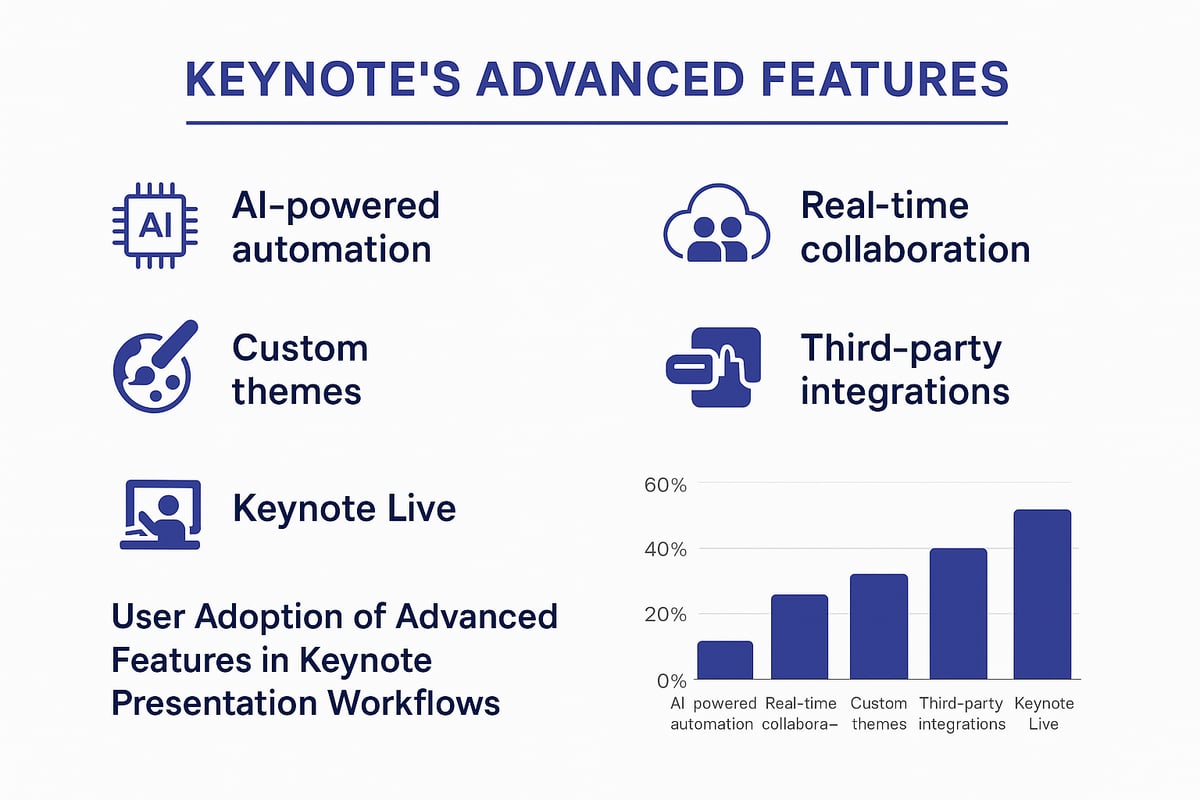
Keynote presentation capabilities have evolved rapidly, offering users a suite of advanced features designed for modern workflows. Staying ahead means understanding the latest tools that streamline content creation, foster collaboration, and enhance audience engagement.
Leveraging AI and Automation Tools
Artificial intelligence is transforming the keynote presentation landscape. Keynote now integrates AI-powered features, such as auto-layout and smart content suggestions, which help users build visually balanced slides in seconds. With Apple Creator Studio, you can even generate entire presentations from meeting notes, saving valuable time and reducing manual effort.
AI assists in reformatting content, optimizing design elements, and recommending layouts based on your data. These features ensure your keynote presentation not only looks professional but also communicates your message clearly.
The growing adoption of AI in presentation software is highlighted in the Presentation Software Market Report 2025, which details how tools like Keynote are shaping the future of digital communication.
Collaborative Tools and Real-Time Editing
Collaboration is essential for any keynote presentation, especially in team environments. Keynote offers seamless sharing through iCloud, allowing multiple contributors to edit slides simultaneously. Version history lets you track changes and restore previous iterations, minimizing the risk of lost work.
Team members can add comments, suggest edits, and manage permissions directly within the app. Integration with Mac, iPad, and iPhone ensures that every collaborator, regardless of their device, can participate fully. Real-time editing accelerates preparation and helps teams deliver a unified keynote presentation.
Remote teams especially benefit from these tools, as they can co-edit a sales pitch or training deck from anywhere in the world.
Customizing Themes and Master Slides
Maintaining brand consistency is crucial for any keynote presentation. Keynote’s advanced theme customization allows users to create, save, and share branded templates across their organization. By editing master slides, you ensure every slide adheres to company colors, fonts, and logos.
Reusable master slides streamline the process of building new decks, saving time and reducing errors. Teams can update a master template, and changes cascade through all linked presentations. This level of control gives organizations a polished, professional appearance in every keynote presentation.
Building a branded template also allows for rapid deployment in recurring events, product launches, or internal meetings.
Integrating Third-Party Apps and Extensions
Keynote presentation workflows benefit from integration with a range of productivity applications. You can connect Keynote with tools like Trello and Slack to streamline project management and communication. Plug-ins add new capabilities, such as advanced charting or automated agenda creation.
Embedding live data from Numbers or Excel brings real-time insights into your keynote presentation. This integration is especially valuable for business reviews, where up-to-date figures are critical. Extensions make it easier to pull in external content, keeping your slides fresh and relevant.
These integrations turn Keynote into a central hub for all your presentation needs, reducing the need to switch between multiple apps.
Presenting with Keynote Live and Remote Tools
Keynote Live allows you to broadcast your keynote presentation to remote audiences with ease. Attendees can join from any device, ensuring accessibility for global teams. The presenter display provides private notes, timers, and next-slide previews, so you stay organized and confident.
Interactive features like polls and Q&A sessions keep audiences engaged. Hosting a virtual workshop becomes seamless, with built-in tools for audience participation and feedback. Keynote presentation delivery is elevated, combining clarity, control, and interactivity.
Whether you are leading a virtual seminar or an international product launch, these tools ensure your message resonates with every viewer.
Delivering and Sharing Your Keynote Presentation: Professional Tips and Best Practices
Delivering an impactful keynote presentation requires more than great slides. The way you present, share, and refine your work can turn information into inspiration. Explore these professional strategies to ensure your next keynote presentation captivates, connects, and leaves a lasting impression.
Mastering Presentation Delivery
The delivery of your keynote presentation is as crucial as its design. Start by rehearsing your timing and pacing, making use of presenter notes and dual-screen setups to stay organized. Practice your body language and engage your audience with storytelling techniques that bring your content to life.
Consider eye contact and movement to keep attention focused. For additional guidance on effective speaking, review these mental health speaker tips to enhance your confidence and impact. A well-delivered keynote presentation can transform knowledge into memorable experiences for your listeners.
Technical Setup and Troubleshooting
A seamless technical setup is vital to avoid disruptions during your keynote presentation. Connect your device to projectors, TVs, or external displays in advance and check compatibility with all hardware and file formats. Always test your slides for media playback, fonts, and transitions.
Prepare backup files in multiple formats, such as PDF or PowerPoint, in case of last-minute technical issues. Familiarize yourself with troubleshooting common problems, like missing media or animation errors, so you can resolve them quickly. Being technically prepared allows you to focus on delivering your keynote presentation smoothly and confidently.
Sharing and Exporting Presentations
After finishing your keynote presentation, consider the various ways to share it professionally. Exporting to PDF, PowerPoint, or video formats ensures compatibility with different platforms and audiences. Use iCloud or secure cloud storage for easy access and sharing across devices.
Protect sensitive information by setting passwords or permissions as needed. Distribute your keynote presentation to team members or clients via email or cloud links, ensuring they can view and interact with the content. For global teams, sharing in multiple formats maximizes accessibility and reach.
Collecting Feedback and Iterating
Gathering and analyzing feedback is essential for refining your keynote presentation. Use audience feedback forms, surveys, or live polls to collect insights on content effectiveness and delivery style. Some platforms provide analytics to measure engagement and retention.
Presenters who continually iterate their keynote presentation based on real feedback see up to 30% higher audience engagement. Review comments and data after each session to identify improvement areas. Updating your presentation over time ensures it remains relevant and impactful for future audiences.
Real-World Success Stories
Many professionals and educators have achieved remarkable outcomes with a well-crafted keynote presentation. Businesses use these presentations at major events to launch products or share strategies, often leading to increased interest and organizational growth.
Educators leverage interactive elements to boost student engagement and learning. For those seeking fresh ways to energize their sessions, exploring mental health workshop ideas can inspire new approaches. Learning from real-world examples highlights the powerful results possible with a strategic keynote presentation.
Troubleshooting, FAQs, and Keynote Resources
Creating an impactful keynote presentation requires not just design skill but also troubleshooting expertise and access to the right resources. Whether you are addressing technical challenges or seeking ways to enhance your workflow, the following guidance will help you maintain confidence and professionalism throughout the process.
Common Keynote Issues and Solutions
Even the most experienced users can face technical issues when preparing a keynote presentation. Common problems include corrupted files, missing media, and compatibility errors with PowerPoint. If your file becomes corrupted, restore it from a recent iCloud or Time Machine backup. For missing media, check that all linked files are in their original locations.
Animation glitches can result from unsupported effects when exporting. To resolve this, preview all transitions and replace any that do not function as expected. If you experience a crash, Keynote typically restores your unsaved work automatically. For more persistent issues, consult Apple’s support forums or reset preferences.
Frequently Asked Questions
Many users have questions about maximizing their keynote presentation experience. Can you use Keynote on Windows or Android? While Keynote is native to Apple devices, you can access presentations via iCloud.com on any modern browser. For large presentations over 100 slides, split your file into sections to maintain performance.
Printing speaker notes is straightforward—use the print dialog to select notes view. For those presenting on topics like wellbeing in the workplace, Keynote’s templates help you tailor content for professional audiences. Remember to keep your software updated to access the latest features and compatibility improvements.
Essential Resources for Keynote Users
To master keynote presentation skills, leverage official guides, templates, and tutorials. The Apple Keynote User Guide provides step-by-step instructions for every feature. Explore curated template libraries, both free and premium, to give your slides a professional edge.
YouTube channels and online courses offer visual walkthroughs for advanced techniques. For business, education, or creative projects, specialized resources can transform your workflow. If your keynote presentation covers popular topics like employee wellbeing, the employee wellbeing programme guide is a great example of valuable content to share.
| Resource Type | Example |
|---|---|
| Official Guide | Apple Keynote User Guide |
| Templates | Curated template libraries |
| Video Tutorials | YouTube walkthroughs |
| Topic Inspiration | Employee wellbeing programme guide |
Staying Updated with Keynote Developments
Staying current ensures your keynote presentation always benefits from the latest tools. Subscribe to Apple news channels and update notifications for feature releases. Join Keynote user communities and forums to exchange tips and troubleshoot unique challenges.
Participate in online workshops and webinars to deepen your expertise. Networking with peers can introduce new design ideas and best practices. Regularly reviewing updates and community insights helps you deliver presentations that stand out in any professional setting.
Now that you’ve explored the essential strategies for mastering Keynote presentations—covering everything from design fundamentals and storytelling to collaborative features and troubleshooting—you’re ready to create impactful presentations that truly engage your team. If you’re looking to elevate your workplace communication and foster a culture of resilience and wellbeing, there’s even more you can discover. The Workplace Mental Health Institute offers comprehensive training and support to help managers and employees thrive. Let’s take your skills and workplace wellbeing to the next level: Find Out More.